Photo import for DxO PhotoLab
DxOImport
From memory card to DxO PhotoLab library, organised, renamed and verified in one step. Free for macOS and Windows.
Why I made it
I process all my photographs in DxO PhotoLab. It is a superb raw developer, but it has no import function: PhotoLab works on folders that already exist on your disk, and getting the photos off the card is left to you.
After every trip, underground or underwater, I was copying files by hand, creating dated folders, renaming, checking that nothing was missing and keeping a backup. DxOImport does all of that in one pass, the same way every time, so the photos are in the right place before PhotoLab even opens them.
How to import photos into DxO PhotoLab
- Insert your memory cardOpen DxOImport, choose the card as source and your PhotoLab library folder as destination. Settings are remembered for next time.
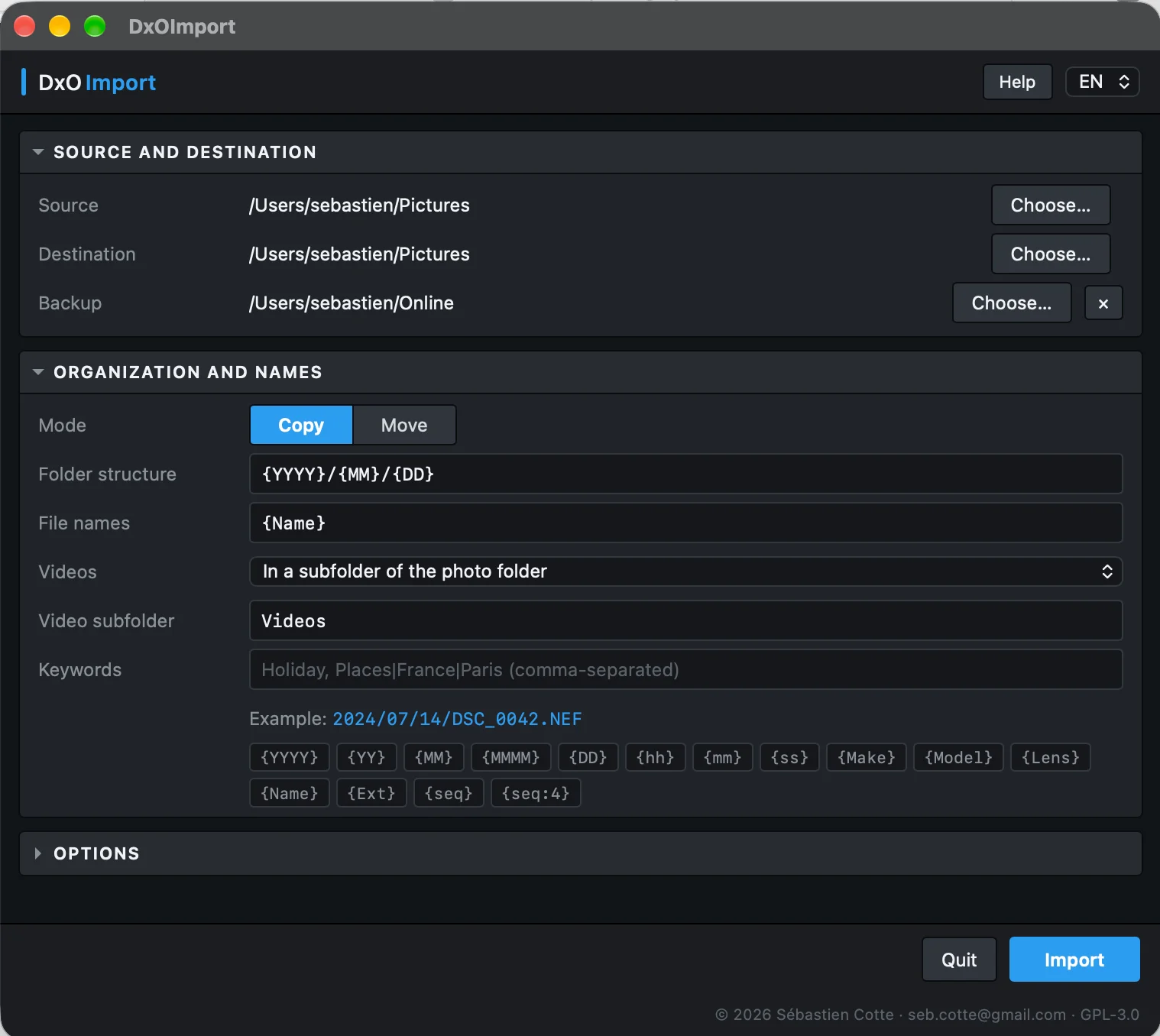
- Check the folders and namesThe example line shows where each photo will go and what it will be called, for example 2026/07/14/2026-07-14_001.NEF. Add keywords if you wish.
- Click ImportPhotos are copied and verified, then the imported folder opens directly in DxO PhotoLab, ready to edit. Eject the card from the app.
What it does
Organised on arrival
Folders and file names are built from templates using the capture date, camera, lens, original name and a counter, for example 2026/07/14/2026-07-14_001.NEF. A live example shows the result before you import.
Copy or move, safely
Every copy is read back and verified with a checksum. In Move mode, originals are deleted only once all their copies, backup included, are confirmed.
Optional backup
A second copy can be written at the same time, for example on an external drive.
Smart duplicates
A photo that is already in your library is skipped, even if PhotoLab has since changed its metadata or it was renamed. A genuinely different file is renamed, with the reason shown.
Related files stay together
A RAW, its JPEG and their .dop and .xmp sidecars get the same new name and go to the same folder. For RAW+JPEG pairs, import both, the RAW only or the JPEG only.
Keywords at import
Keywords, including hierarchies such as Places|France|Paris, are written to .xmp files that PhotoLab reads when it indexes the folder. Existing .xmp files are completed, never emptied, and .dop files are never touched.
Videos handled apart
Videos go to a subfolder of their own, stay with the photos, or are left on the card.
Ready for PhotoLab
At the end, a summary and the detail of every action are shown. One click opens the imported folder in DxO PhotoLab, and memory cards can be ejected from the app.
First launch
The application is not signed with an Apple or Microsoft developer certificate, so your system will warn you the first time.
macOS: open the disk image, drag DxOImport to Applications, then right-click it and choose Open.
Windows: run the installer; if SmartScreen appears, click More info, then Run anyway.
DxOImport writes nothing except the imported photos, the keyword .xmp files and its own settings. The source card is never modified, except when you choose Move.
Feedback
For any feature suggestion or bug report, please contact me by email at seb.cotte@gmail.com. For a bug, mention your system (macOS or Windows), your camera and what you were doing when it happened.
Licence and source code
DxOImport is free software, released under the GNU General Public License version 3. It comes with no warranty. The source code is available on request through the contact page.
Checksums (SHA-256)
DxOImport_0.1.0_aarch64.dmg455625ec609711c1a4bfc6969ff8b535d2293f4cd8e12ff14e315f93c4fd944a
DxOImport_0.1.0_x64-setup.exe63d1e004e36c386169d8b99dcc724a8a2a51a3f8d81bc784e3df71f4f22cb31d
DxO and DxO PhotoLab are trademarks of DxO Labs. DxOImport is an independent project, not affiliated with or endorsed by DxO Labs.